
Image Accessibility: Why It Matters More Than Ever
Images enhance the visual appeal of a website, support storytelling, and simplify complex information. However, when images are not accessible, they create barriers for millions of people who rely on assistive technologies such as screen readers.
Image accessibility is a fundamental part of creating an inclusive digital experience. It helps people with visual impairments understand content while also improving SEO, usability, and compliance with accessibility standards such as WCAG 2.2, AODA, ADA, and Section 508.
Making images accessible isn’t difficult—but it does require understanding when images need alternative text, when they should be ignored by assistive technologies, and how different image types should be handled.
What Is Image Accessibility?
Image accessibility is the practice of ensuring that every meaningful image on a website can be understood by users who cannot see it. People may access websites using:
- Screen readers
- Refreshable Braille displays
- Voice-controlled technology
- High contrast settings
- Text-only browsers
- Slow internet connections where images fail to load
Accessible images provide equivalent information regardless of how users access the page.
Why Image Accessibility Is Important
Creating accessible images benefits everyone.
Improves Accessibility
Users who cannot see images can still understand the content through meaningful descriptions.
Supports WCAG Compliance
Accessible images help organizations meet requirements under:
- WCAG 2.2
- AODA
- ADA
- Section 508
- EN 301 549
Improves SEO
Search engines cannot interpret images the same way humans can. Well-written alternative text provides additional context that helps search engines better understand page content.
Better User Experience
Accessible content creates a better experience for all users, including those with temporary disabilities or poor internet connections.
Types of Images and How to Make Them Accessible
1. Informative Images
Informative images communicate information that is important to understanding the page.
Examples include:
- Team member photos
- Product images
- Maps
- Icons with meaning
- Educational illustrations
Image:
A golden retriever playing with a child in a park.

Alt Text: Golden retriever playing fetch with a child in a public park.
Using “dog and kid” as the alt text is too vague and loses important context.
2. Decorative Images
Decorative images add visual appeal but provide no meaningful information. Examples include:
- Background textures
- Decorative borders
- Abstract shapes
- Visual dividers
Screen readers should not announce these images. Instead, use an empty alt attribute:
<img src="background-pattern.jpg" alt="">This tells assistive technology to ignore the image.
3. Functional Images
Functional images act as controls or links. Examples:
- Search icon
- Download button
- Shopping cart
- Print icon
The alternative text should describe the action, not the appearance. The purpose matters more than what the icon looks like.
Good alt text is “Search”
Bad alt text is “Magnifying glass”
4. Complex Images
Some images contain a large amount of information. Examples include:
- Charts
- Graphs
- Process diagrams
- Organizational charts
- Flowcharts
- Infographics
Short alt text alone is usually insufficient.
Instead:
- Provide a brief alt text.
- Include a nearby detailed explanation.
- Offer a data table when appropriate.
Example:
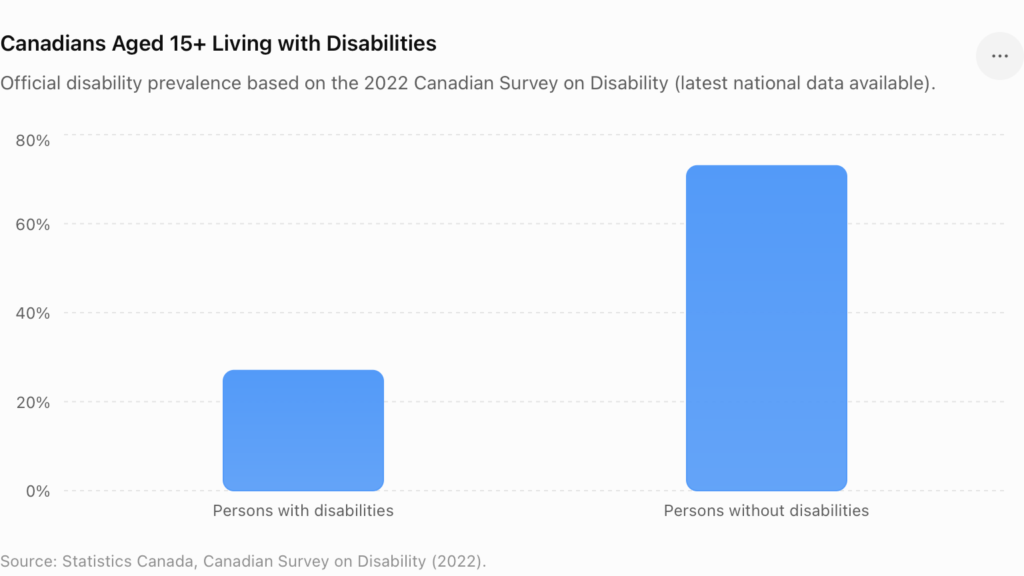
Alt Text: Canadians Aged 15+ Living with Disabilities
Below the chart:
Bar chart showing disability prevalence among Canadians aged 15 years and older based on Statistics Canada’s 2022 Canadian Survey on Disability. The chart shows that 27% of Canadians have one or more disabilities, while 73% do not report a disability.
Writing Effective Alt Text
Alternative text (alt text) should communicate the same purpose or information that a sighted user gains from the image. Good alt text is:
- Short
- Accurate
- Contextual
- Meaningful
- Relevant to the surrounding content
Alt Text Best Practices
Describe the Purpose
Focus on why the image exists. Instead of “Woman”, use “Customer submitting an online accessibility request form.”
Keep It Concise
Most images only require one or two sentences. Avoid writing long paragraphs unless describing complex graphics.
Don’t Start with “Image of”
Screen readers already announce that the element is an image. Instead of “Image of a smiling customer” use “Smiling customer using an accessible website.”
Include Important Text in Images
If an image contains essential text, that information should also be available as actual text on the page. Avoid placing important information only inside images.
Consider Context
The same image may require different alt text depending on where it appears.
Example:
A company logo may have:
Homepage:
CodexMotive Digital Solutions
Footer link:
CodexMotive Digital Solutions Home
Common Image Accessibility Mistakes
Many websites unintentionally create accessibility barriers. Avoid these common issues:
- Missing alt text
- Using file names as alt text
- Writing overly long descriptions
- Repeating surrounding text
- Using decorative images with unnecessary descriptions
- Embedding important text inside images
- Poor color contrast within images
- Using images instead of real text
Image Accessibility and Responsive Design
Responsive websites should maintain accessibility across:
- Desktop
- Tablet
- Mobile devices
- High zoom levels
- Landscape and portrait orientations
Images should remain understandable regardless of screen size.
Image Accessibility Testing Checklist
Before publishing your website, ask these questions:
- Does every meaningful image have descriptive alt text?
- Are decorative images ignored by assistive technologies?
- Do linked images describe their destination or action?
- Are charts and infographics explained in nearby text?
- Is important information available outside of images?
- Can screen reader users understand the same information as sighted users?
- Have you tested images with a screen reader?
- Have automated accessibility tools been used alongside manual testing?
Useful Tools for Testing Image Accessibility
Several tools can help identify image accessibility issues:
- Browser accessibility inspection tools
- Automated accessibility testing extensions
- Screen readers (NVDA, JAWS, VoiceOver)
- Browser developer tools
- Accessibility evaluation platforms
Remember that automated tools cannot determine whether your alt text is meaningful. Manual review is always essential.
Final Thoughts
Accessible images are an essential part of an inclusive web experience. By writing meaningful alternative text, correctly handling decorative graphics, and providing accessible alternatives for complex visuals, you create content that everyone can understand and interact with.
Image accessibility also strengthens your website’s search engine optimization, improves usability, and helps meet legal accessibility requirements. Most importantly, it ensures that users of assistive technologies have equal access to the information your website provides.
Whether you’re designing a new website or improving an existing one, investing time in accessible images is a simple yet impactful step toward creating a more inclusive digital experience.
Frequently Asked Questions (FAQ)
What is image accessibility?
Image accessibility ensures that images can be understood by users who rely on assistive technologies by providing appropriate alternative text or other accessible alternatives.
What is alt text?
Alt text (alternative text) is a written description of an image that screen readers announce to users who cannot see the image.
Should decorative images have alt text?
No. Decorative images should use an empty alt="" attribute so screen readers skip them.
Can automated tools verify good alt text?
Automated tools can detect missing alt text but cannot determine whether the description is meaningful. Manual review is always necessary.
Does image accessibility improve SEO?
Yes. Meaningful alternative text helps search engines understand image content, supports image search, and contributes to stronger overall page SEO.