
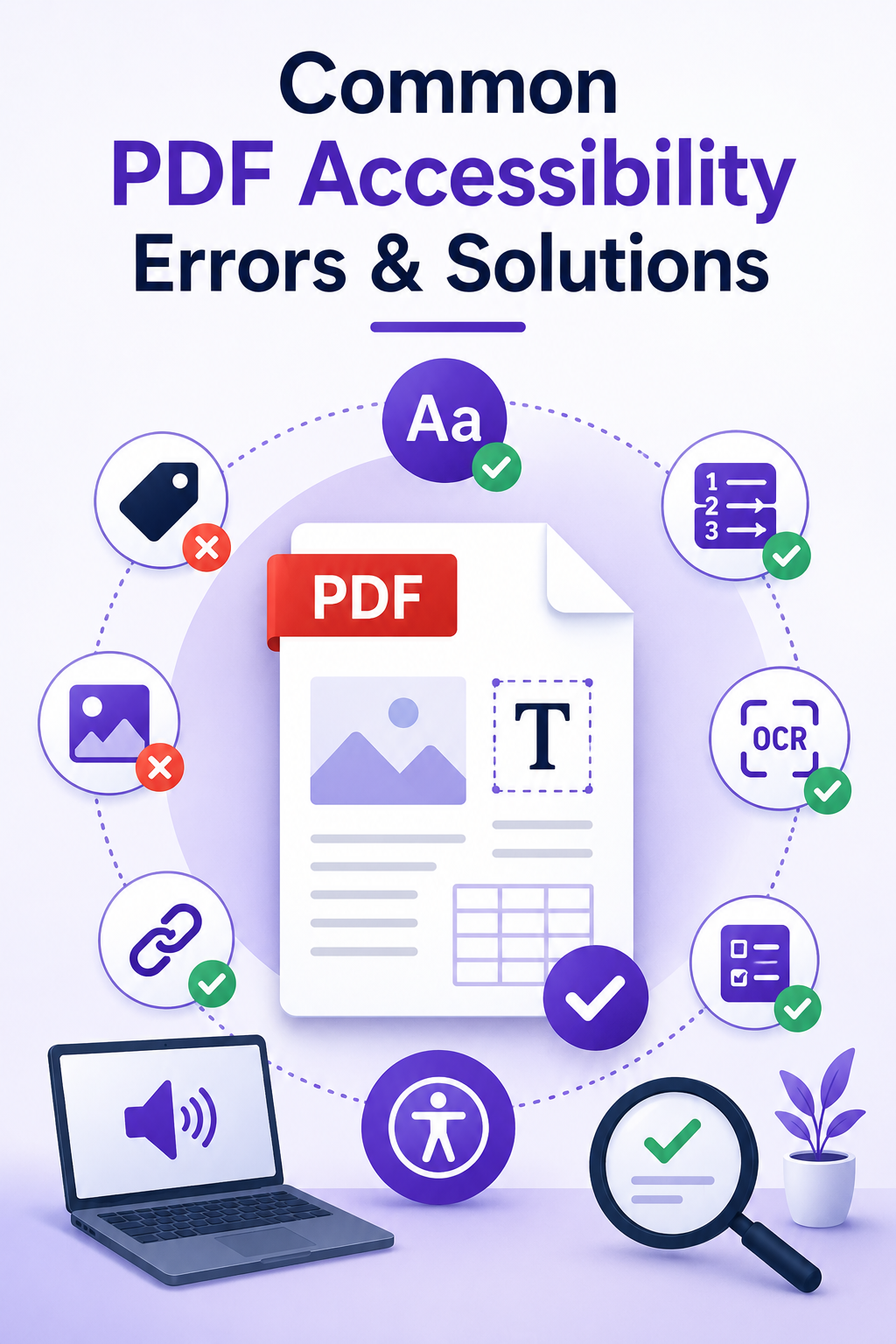
Common PDF Accessibility Errors and Solutions
Have you ever opened a PDF only to discover that the text can’t be selected, headings don’t make sense, or a screen reader reads everything in the wrong order? For many people, this isn’t just frustrating—it makes the document impossible to use.
Organizations often assume that exporting a Word document as a PDF automatically creates an accessible document. Unfortunately, that’s one of the biggest misconceptions about document accessibility.
While the document may look perfect visually, it can contain hidden accessibility issues that prevent people using assistive technologies from reading or navigating it.
Whether you’re creating reports, forms, brochures, policies, manuals, or annual reports, ensuring your PDFs are accessible helps everyone access your content while supporting compliance with WCAG 2.2, AODA, ADA, and Section 508.
Why PDF Accessibility Matters
An accessible PDF allows people with disabilities to:
- Navigate using headings
- Read content with screen readers
- Complete interactive forms independently
- Resize text without losing information
- Access tables and lists correctly
- Understand images through alternative text
Accessible documents also improve usability for mobile users, older adults, and anyone using keyboard navigation or assistive technology.
1. Missing Document Tags
One of the most common accessibility problems is an untagged PDF. Tags tell assistive technologies what each piece of content represents. Without them, a screen reader sees the page as one large block of text instead of headings, paragraphs, lists, tables, or images.
Solution: Always create properly tagged PDFs. Instead of creating a PDF by printing or scanning, export the document directly from Microsoft Word, Adobe InDesign, or another authoring tool that supports accessibility.
After exporting, verify the document tags using Adobe Acrobat Pro.
2. Incorrect Heading Structure
Many PDFs use larger or bold text to make headings appear visually different. Unfortunately, visual formatting alone does not create accessible headings. Screen reader users rely on heading levels to quickly navigate through long documents.
Solution: Use semantic heading levels:
- Heading 1 for the document title
- Heading 2 for major sections
- Heading 3 for subsections
- Continue sequentially without skipping levels
A logical heading hierarchy makes documents easier for everyone to understand.
3. Images Without Alternative Text
Images often contain important information, but if no alternative text is provided, screen reader users receive no description. This includes:
- Logos
- Charts
- Graphs
- Diagrams
- Icons
- Infographics
Solution: Add meaningful alternative text that explains the purpose of the image rather than describing every visual detail. For decorative images, mark them as decorative so assistive technologies ignore them.
4. Incorrect Reading Order
A PDF may look perfectly organized on screen while being read completely out of order by assistive technologies. This frequently happens with:
- Multiple columns
- Sidebars
- Floating images
- Complex layouts
Solution: Check the document’s reading order using Adobe Acrobat Pro.
Ensure content follows the same logical order that users see visually.
5. Scanned PDFs Without OCR
Scanned documents are usually just images. Because there is no real text, screen readers cannot read them, users cannot search the document, and text cannot be copied.
Solution: Run Optical Character Recognition (OCR) to convert images into searchable text. After OCR, review the document carefully because automated recognition often introduces errors.
6. Missing Document Title and Language
Many PDFs lack basic document properties such as:
- Document title
- Primary language
Without these settings, screen readers may pronounce words incorrectly or display generic file names.
Solution: Always define:
- A meaningful document title
- The document language (such as English or French)
These settings only take a few seconds but significantly improve accessibility.
7. Poor Colour Contrast
Light grey text on a white background may look modern, but it can be difficult for many people to read. Low colour contrast affects users with:
- Low vision
- Colour vision deficiencies
- Mobile devices
- Bright environments
Solution: Use colour combinations that meet WCAG contrast requirements. Avoid relying on colour alone to communicate information. For example, don’t use only red text to indicate errors. Include icons or descriptive text as well.
8. Tables Without Proper Structure
Tables are often created visually instead of structurally. Without proper table headers, screen readers cannot identify relationships between rows and columns.
Solution: Ensure every table includes:
- Header rows
- Correct table structure
- No merged cells where possible
- Simple layouts
Use tables only for presenting data—not for page layout.
9. Inaccessible Hyperlinks
Links such as “Click Here” provide no context when read by assistive technology. Users navigating through links alone won’t know where each link goes.
Solution: Write descriptive link text. Good examples include:
- Download the Accessibility Report
- View Our PDF Accessibility Services
- Contact Our Accessibility Team
Meaningful links improve both accessibility and SEO.
10. Interactive Forms Without Labels
PDF forms frequently contain fields with no accessible labels. As a result, screen reader users may only hear “Edit box” without knowing what information should be entered.
Solution: Label every:
- Text field
- Checkbox
- Radio button
- Dropdown
- Submit button
Instructions should also be clear and easy to understand.
11. Accessibility Checker Errors Left Unresolved
Many organizations run Adobe Acrobat’s Accessibility Checker and assume the document is fully accessible if most tests pass. Automated tools can identify many issues, but they cannot detect everything.
Solution: Combine automated testing with manual accessibility testing. Review the document using:
- Keyboard navigation
- Screen readers
- Reading order inspection
- Colour contrast evaluation
Manual testing provides a much more accurate assessment.
Best Practices for Creating Accessible PDFs
To reduce remediation work later, build accessibility into the document from the beginning. Follow these best practices:
- Use heading styles in Microsoft Word.
- Add alternative text to every meaningful image.
- Export tagged PDFs instead of printing to PDF.
- Keep tables simple and properly structured.
- Use sufficient colour contrast.
- Include descriptive hyperlinks.
- Set the document language and title.
- Verify reading order.
- Run accessibility checks.
- Perform manual testing with assistive technologies.
Creating accessible documents from the start saves time, improves usability, and supports compliance.
Accessibility Is More Than Compliance
Accessible PDFs aren’t just about meeting legal requirements—they help ensure everyone can access your information, regardless of ability or technology.
Whether you’re sharing employee handbooks, public reports, financial statements, educational resources, or government documents, removing accessibility barriers creates a better experience for every reader.
Fixing common accessibility issues early reduces remediation costs, improves document quality, and demonstrates your commitment to inclusive communication.
Need Help Making Your PDFs Accessible?
If your organization publishes PDFs online, it’s important to ensure they’re accessible to everyone—not just visually appealing.
At CodexMotive Digital Solutions, we provide professional PDF accessibility remediation, document testing, and WCAG compliance services to help organizations meet accessibility standards with confidence.
Whether you have one document or thousands, our team can help make your PDFs accessible, compliant, and easier for everyone to use.
Frequently Asked Questions
How do I know if my PDF is accessible?
You can use Adobe Acrobat Pro’s Accessibility Checker as a starting point, but manual testing with keyboard navigation and screen readers is essential to identify issues that automated tools may miss.
What standards apply to accessible PDFs?
Most organizations follow WCAG 2.2 requirements. Depending on your location or industry, you may also need to comply with AODA, ADA, or Section 508.
Can scanned PDFs be made accessible?
Yes. Scanned PDFs can be remediated by applying OCR, creating proper tags, correcting the reading order, adding alternative text, and fixing document structure.
Does Microsoft Word create accessible PDFs automatically?
Microsoft Word can create tagged PDFs if accessibility best practices are followed before exporting. However, the exported PDF should still be reviewed and tested for accessibility.